Journey Embed SDK
The Journey Embed SDK is a chainable JavaScript API for rendering epilot Journeys. One SDK, two backends:
- A rewritten iframe engine that replaces the legacy
__epilotscript with a faster, cleaner host integration. - The
<epilot-journey>Web Component, a custom HTML element that renders in Shadow DOM.
Backward compatibility
Existing embeds using the legacy __epilot script continue to work, but this SDK is preferred going forward
When to use the SDK
For iframe embedding, the SDK is the new default. It replaces the legacy __epilot script.
For web components, use the SDK or drop the <epilot-journey> element directly into your HTML, whichever fits your integration.
Installation
You can install the SDK three ways. Pick the one that matches your setup.
Option 1: Synchronous CDN
The simplest install. Add one script tag. $epilot is available immediately on window. When you call .asWebComponent(), the SDK loads the web component script automatically. No extra tags needed.
<script src="https://embed.journey.epilot.io/sdk/bundle.js"></script>
Option 2: Asynchronous CDN (with onReady)
Load the SDK asynchronously to avoid blocking your page. Drop this stub in your <head>. It places a tiny $epilot.onReady() queue on window and loads the real bundle in the background:
<script>
  ;(function (h, o, u, n, d) {
    h = h[d] = h[d] || {
      q: [],
      onReady: function (c) {
        h.q.push(c)
      },
    }
    d = o.createElement(u)
    d.async = 1
    d.src = n
    n = o.getElementsByTagName(u)[0]
    n.parentNode.insertBefore(d, n)
  })(
    window,
    document,
    'script',
    'https://embed.journey.epilot.io/sdk/bundle.js',
    '$epilot'
  )
</script>
Then call onReady anywhere on the page. Your callback runs as soon as the SDK finishes loading:
<div id="embed-target"></div>

<script>
  window.$epilot.onReady(function (epilot) {
    epilot
      .embed('<your-journey-id>')
      .asWebComponent()
      .mode('inline')
      .append('#embed-target')
  })
</script>
How it works
Before the bundle loads, onReady(cb) pushes cb onto a queue. When the bundle finishes loading, it replaces the stub, drains the queue, and invokes each callback. Callbacks registered later run synchronously.
Option 3: npm package
For bundler-based apps (Next.js, Vite, Webpack, etc.), install @epilot/journey-embed-sdk from npm. You'll get full TypeScript types and autocomplete:
npm install @epilot/journey-embed-sdk
# or
yarn add @epilot/journey-embed-sdk
# or
pnpm add @epilot/journey-embed-sdk
import { Epilot } from '@epilot/journey-embed-sdk'

// Options are optional. Defaults to the production Journey app.
const epilot = new Epilot({
  // baseUrl: 'https://journey.staging.epilot.io',  // override per environment
})

epilot
  .embed('<your-journey-id>')
  .asWebComponent()
  .mode('inline')
  .append('#embed-target')
The npm package does not use window.$epilot. You create your own instance. Its only runtime dependency is iframe-resizer.
Quick Start
With the SDK installed via any of the options above, call $epilot.embed() (or your own instance) and chain configuration options. End the chain with an injection method (append, prepend, before, or after):
<div id="embed-target"></div>

<script>
  document.addEventListener('DOMContentLoaded', function () {
    $epilot
      .embed('<your-journey-id>')
      .asWebComponent()
      .mode('inline')
      .topBar(true)
      .scrollToTop(true)
      .append('#embed-target')
  })
</script>
The Journey is injected into #embed-target. Read on for the full API reference and advanced scenarios.
Embed Targets
The SDK supports two rendering backends. Choose one by calling the corresponding method in your chain:
| Method | Backend | Notes |
|---|---|---|
.asWebComponent() | <epilot-journey> custom element | Recommended. Uses Shadow DOM for better performance and accessibility. The web component script is auto-loaded. |
.asIframe() | <iframe> | Uses the rewritten iframe engine. Choose this for stronger style isolation or multiple Journeys on one page. |
Both backends accept the same configuration methods. For .asIframe(), the SDK delivers most options (scrollToTop, closeButton, contextData) via postMessage after the iframe signals readiness. dataInjectionOptions goes in the iframe URL.
The one behavioural difference is the Inline to Full-Screen pattern: web components need an explicit .mode() call alongside .isFullScreenEntered(). Iframes don't.
API Reference
All configuration methods are chainable and return the Embedding instance. Call an injection method at the end of the chain to render the Journey.
Configuration methods
| Method | Type | Default | Description |
|---|---|---|---|
.mode(value) | "inline" | "full-screen" | "inline" | The display mode. "inline" renders within the page flow. "full-screen" renders as an overlay. |
.topBar(value) | boolean | true | Whether to show the top navigation bar. Only applies to inline mode — in full-screen mode the top bar is always visible and cannot be hidden. |
.scrollToTop(value) | boolean | true | Whether to scroll to the top of the Journey on step navigation. |
.closeButton(value) | boolean | true | Whether to show the close button in the top bar. |
.lang(value) | "de" | "en" | "fr" | - | Deprecated. Will be removed in a future version. Overrides the Journey UI language. Set the language in the Journey Builder instead. |
.canary() | - | - | Uses the canary release channel for the web component script instead of stable. See Release Channels. |
.contextData(value) | ContextData | - | Additional key-value data passed to the Journey and included with the submission. Accepts string or number (coerced). See Context Data. |
.dataInjectionOptions(value) | DataInjectionOptions | - | Pre-fills Journey fields and controls the starting step. See Data Injection. |
.name(value) | string | - | Accessible name for the embedded Journey. Sets the iframe's name and title attributes; sets title on the <epilot-journey> host element. |
.id(value) | string | - | Sets the id attribute on the embedded element. Call before the placement method for iframe embeds. See Setting a stable id. |
.testId(value) | string | - | Sets data-testid on the embedded element for test tooling (RTL, Playwright, etc.). Off by default. |
.isFullScreenEntered(value) | boolean | - | Controls whether the Journey is visible in full-screen. Can be called before embedding (sets initial state) or after (updates the live element). See Full-Screen. |
Injection methods
These methods insert the Journey into the DOM and return the Embedding instance. Call exactly one at the end of your chain.
| Method | Behavior |
|---|---|
.append(selector \| element) | Inserts the Journey as the last child of the target element. |
.prepend(selector \| element) | Inserts the Journey as the first child of the target element. |
.after(selector \| element) | Inserts the Journey immediately after the target element (as a sibling). |
.before(selector \| element) | Inserts the Journey immediately before the target element (as a sibling). |
Instance methods
These are called on the Embedding instance returned by an injection method, for dynamic updates after the Journey has already been rendered.
| Method | Description |
|---|---|
.mode(value) | Updates the display mode on the live element. Used in the Inline to Full-Screen pattern to promote or demote a web component between modes. |
.isFullScreenEntered(value) | Dynamically enters or exits full-screen on the already-rendered Journey. |
.remove() | Removes the Journey element from the DOM and cleans up all event listeners. |
.el() | Returns the raw HTMLElement (or null if not yet injected). |
Root methods
Called on $epilot itself (or on a new Epilot(options) instance when using the npm package).
| Method | Description |
|---|---|
.embed(id) | Returns a new Embedding builder for the given Journey id. |
.init() | Returns a fresh Epilot instance. Optional. new Epilot(options) does the same thing. |
.onReady(cb) | Invokes cb with the SDK instance as soon as the SDK is ready. Safe to call before the bundle has loaded when using the async CDN install; callbacks are queued and drained on load. |
Scenarios
Inline
Renders the Journey directly within the page at the position of #embed-target:
<div id="embed-target"></div>

<script>
  document.addEventListener('DOMContentLoaded', function () {
    $epilot
      .embed('<your-journey-id>')
      .asWebComponent()
      .mode('inline')
      .topBar(true)
      .scrollToTop(true)
      .append('#embed-target')
  })
</script>
Full-Screen Mode
In full-screen mode the Journey is hidden by default. Call .isFullScreenEntered(true) on the Embedding instance to open it, typically from a button click:
Top bar in full-screen
The top bar is always visible in full-screen mode and cannot be hidden. .topBar(false) is ignored when mode is "full-screen". The close button inside the top bar can still be toggled with .closeButton(value).
<button id="open-btn">Open Journey</button>
<div id="embed-target"></div>

<script>
  document.addEventListener('DOMContentLoaded', function () {
    var embedding = $epilot
      .embed('<your-journey-id>')
      .asWebComponent()
      .mode('full-screen')
      .topBar(true)
      .closeButton(true)
      .append('#embed-target')

    document.getElementById('open-btn').addEventListener('click', function () {
      embedding.isFullScreenEntered(true)
    })
  })
</script>
To close it programmatically (e.g. in response to an event):
embedding.isFullScreenEntered(false)
Multiple Journeys
Each $epilot.embed() call returns its own Embedding instance, so you can render several Journeys on one page, each with independent configuration and lifecycle.
Use .asIframe() for this pattern. See Limitations for why the web component backend is limited to one instance per page.
<div id="embed-a"></div>
<div id="embed-b"></div>

<script>
  document.addEventListener('DOMContentLoaded', function () {
    $epilot
      .embed('<your-journey-id-1>')
      .asIframe()
      .mode('inline')
      .append('#embed-a')

    $epilot
      .embed('<your-journey-id-2>')
      .asIframe()
      .mode('inline')
      .append('#embed-b')
  })
</script>
Inline to Full-Screen Transition
A common pattern is to start a Journey inline and transition it to full-screen once the user moves past the first step. Listen for EPILOT/USER_EVENT/PAGE_VIEW messages on window and call isFullScreenEntered() accordingly.
Web Component vs iframe
For web components, the full-screen overlay is gated on the element's mode attribute, so you must call .mode() alongside isFullScreenEntered() when entering and exiting:
- Enter:
.mode('full-screen').isFullScreenEntered(true) - Exit:
.isFullScreenEntered(false).mode('inline')
For iframes, the overlay is applied directly via CSS. .isFullScreenEntered() alone is sufficient and no mode change is needed.
<div id="embed-target"></div>

<script>
  document.addEventListener('DOMContentLoaded', function () {
    var journeyId = '<your-journey-id>'
    var firstStep = ''

    var embedding = $epilot
      .embed(journeyId)
      .asWebComponent()
      .mode('inline')
      .topBar(true)
      .scrollToTop(true)
      .append('#embed-target')

    window.addEventListener('message', function (event) {
      if (
        event.data?.type === 'EPILOT/USER_EVENT/PAGE_VIEW' &&
        event.data?.journeyId === journeyId
      ) {
        var path = event.data?.payload?.path

        if (!firstStep) {
          firstStep = path
        } else if (firstStep === path) {
          embedding.isFullScreenEntered(false).mode('inline')
        } else {
          embedding.mode('full-screen').isFullScreenEntered(true)
        }
      }
    })
  })
</script>
Launcher Journeys
Launcher Journeys are a special type of inline Journey where the first step acts as a teaser. When the user navigates past the launcher step, the Journey automatically transitions to full-screen. When they close or navigate back, it returns to inline.
With the SDK, launcher transitions are handled automatically:
- Web component: The
<epilot-journey>custom element handlesEPILOT/ENTER_FULLSCREENandEPILOT/EXIT_FULLSCREENevents internally. No extra code needed. - iframe: The SDK listens for fullscreen events via
postMessageand manages the CSS overlay automatically.
<div id="embed-target"></div>

<script>
  document.addEventListener('DOMContentLoaded', function () {
    $epilot
      .embed('<your-launcher-journey-id>')
      .asWebComponent()
      .mode('inline')
      .topBar(true)
      .append('#embed-target')
  })
</script>
<div id="embed-target"></div>

<script>
  document.addEventListener('DOMContentLoaded', function () {
    $epilot
      .embed('<your-launcher-journey-id>')
      .asIframe()
      .mode('inline')
      .topBar(true)
      .append('#embed-target')
  })
</script>
No event listeners required. The SDK and web component handle the transition lifecycle.
Inside a React component (using refs)
Every placement method (append, prepend, before, after) accepts either a CSS selector or a direct HTMLElement. That means React consumers can pass ref.current — no need to give the target a unique id or class that could collide across components.
import { useEffect, useRef } from 'react'
import { Epilot, type Embedding } from '@epilot/journey-embed-sdk'

const $epilot = new Epilot()

export function JourneyEmbed({ journeyId }: { journeyId: string }) {
  const targetRef = useRef<HTMLDivElement | null>(null)
  const embeddingRef = useRef<Embedding | null>(null)

  useEffect(() => {
    if (!targetRef.current) return

    embeddingRef.current = $epilot
      .embed(journeyId)
      .asWebComponent()
      .mode('inline')
      .append(targetRef.current)

    return () => {
      embeddingRef.current?.remove()
      embeddingRef.current = null
    }
  }, [journeyId])

  return <div ref={targetRef} />
}
The .remove() call in the effect cleanup detaches the element and tears down all SDK listeners, so the component is safe to mount, unmount, and remount without leaks. If you re-embed with a different journeyId, the effect re-runs — removing the previous instance and creating a fresh one.
Why this works
The SDK's placement methods are typed as (selector: string | HTMLElement). When you pass a string, the SDK runs document.querySelector to find the target. When you pass an element directly (which is what ref.current gives you after mount), it skips the query and uses the node you handed it. Refs are the recommended pattern for React because they're stable and avoid id-collision bugs across re-renders or nested components.
Setting a stable id
Use .id(value) when you need a predictable id attribute on the embedded element. Typical reasons:
- Anchor links. Support
#journey-previewURLs that scroll to the embed. - CSS selectors. Style the embed via
#journey-preview { ... }without relying on structural selectors that break under refactors. - Accessibility. Reference the embed from another element via
aria-labelledby="journey-preview"or<label for="journey-preview">.
$epilot
  .embed('<your-journey-id>')
  .asIframe()
  .id('hero-journey')
  .mode('inline')
  .append('#embed-target')
Without .id(), iframe embeds pick up an auto-generated id="iFrameResizer0" (or iFrameResizer1, iFrameResizer2, …) from the iframe-resizer library we use for auto-sizing. That id is stable within a single page load but is an implementation detail — don't write code against it.
Call .id() before the placement method
For iframe embeds, iframe-resizer reads the iframe's id at initialisation and uses it as the routing key for resize messages. Changing the id afterwards breaks auto-sizing. Always chain .id(value) before .append() / .prepend() / .before() / .after().
Web component embeds are unaffected — .id(value) can be called any time.
.id() versus .testId()
These set different attributes with different contracts. Don't confuse them.
| Method | Attribute | Purpose | Uniqueness |
|---|---|---|---|
.id(value) | id | CSS selectors, anchor links, aria-labelledby, iframe-resizer routing | Must be unique in the document |
.testId(value) | data-testid | Test tools — React Testing Library, Playwright, Cypress | No hard uniqueness rule; tests usually enforce their own |
They can be set independently, together, or not at all. Most production pages only need .id(); test suites use .testId(). Use both when a test needs to assert on an element that also has a production-relevant id:
$epilot
  .embed('<id>')
  .asIframe()
  .id('hero-journey') // for anchor link / CSS / a11y
  .testId('hero-journey') // for the test tooling
  .append('#embed-target')
Context Data
.contextData() accepts a plain object of key-value pairs. The data is passed to the Journey and included with every submission. Only string and numeric values are supported. Other types are ignored.
$epilot
  .embed('<your-journey-id>')
  .asWebComponent()
  .mode('inline')
  .contextData({ source: 'checkout', campaign: 'summer-2025', count: 3 })
  .append('#embed-target')
The Journey also automatically picks up URL search parameters from the host page. Values passed via .contextData() take precedence when keys overlap.
Data Injection
Data injection allows you to pre-fill Journey fields with data and optionally start from a specific step. This is useful when your website has already collected some information (e.g. a product selection or address) and you want to carry it into the Journey.
- Prefill data: set initial values for journey blocks.
- Start from a specific step: skip earlier steps (e.g., when product selection happens on an external website).
- Control field display: disable specific fields.
The .dataInjectionOptions() method accepts a DataInjectionOptions object with the following structure:
type DataInjectionOptions = {
  /** The stable id of the step to start the Journey from (recommended) */
  initialStepId?: string
  /**
   * The step index to start the Journey from (0-based).
   * @deprecated Legacy alternative to initialStepId; the index shifts when steps are reordered
   */
  initialStepIndex?: number
  /**
   * Pre-fill data. Two forms are supported:
   * - recommended: an object keyed by stable block id -> block value
   * - deprecated (legacy): an array indexed by step position, each entry keyed by block name
   */
  initialState?:
    | Record<string, Record<string, unknown>>
    | Record<string, unknown>[]
  /**
   * Control which blocks are disabled (rendered read-only). Read-only is
   * currently supported only for these block types: Personal Information,
   * Address, Availability Check, and Text Input.
   */
  blocksDisplaySettings?: BlockDisplaySetting[]
}

type BlockDisplaySetting = {
  type: 'DISABLED'
  /** The stable, journey-wide id of the block to target (recommended) */
  blockId?: string
  /** @deprecated Legacy alternative to blockId; breaks silently when the block is renamed */
  blockName?: string
  /** @deprecated Legacy alternative to blockId; the 0-based step index shifts when steps are reordered */
  stepIndex?: number
  blockFields?: string[]
}
Setting data injection options
The recommended form keys initialState by block ID — the block's stable, journey-wide identifier. Block IDs are unique across the whole Journey and are unaffected by block renames or by reordering steps, so an embed keyed by block ID keeps working even after the Journey is restructured.
Pass the object inline in your embed chain. The complete example below combines all three features in a single call — start the Journey at a step by its stable initialStepId, prefill initialState keyed by block id, and disable a block by blockId:
$epilot
  .embed('123')
  .asIframe()
  .mode('full-screen')
  .dataInjectionOptions({
    initialStepId: 'f0e1d2c3-b4a5-6789-0abc-def012345678',
    initialState: {
      'b1f2c3d4-5e6f-7a8b-9c0d-1e2f3a4b5c6d': { city: 'Berlin' },
    },
    blocksDisplaySettings: [
      {
        type: 'DISABLED',
        blockId: 'b1f2c3d4-5e6f-7a8b-9c0d-1e2f3a4b5c6d',
        blockFields: ['city'],
      },
    ],
  })
  .append('#target')
The same .dataInjectionOptions({ ... }) call works with either backend — swap .asIframe() for .asWebComponent() to prefill a web component embed.
Populating initialState
The recommended form keys initialState by block ID. Each entry is an object of the field values for that block. Because the state is keyed by block ID, you only list the blocks you actually want to prefill — no per-step ordering or empty {} placeholders are needed, and the mapping is unaffected by block renames or step reordering. To find a block's ID, open the block configurator in the Journey builder.
Making blocks read-only
blocksDisplaySettings renders a block — or specific fields within it — as read-only: the prefilled values are shown but the end customer can't edit them. Each entry sets type: 'DISABLED' and targets a block by its stable blockId (recommended); add blockFields to lock only certain fields instead of the whole block.
Read-only is currently supported only for these block types:
- Personal Information
- Address
- Availability Check
- Text Input
Other block types don't support read-only.
Data Injection Options builder
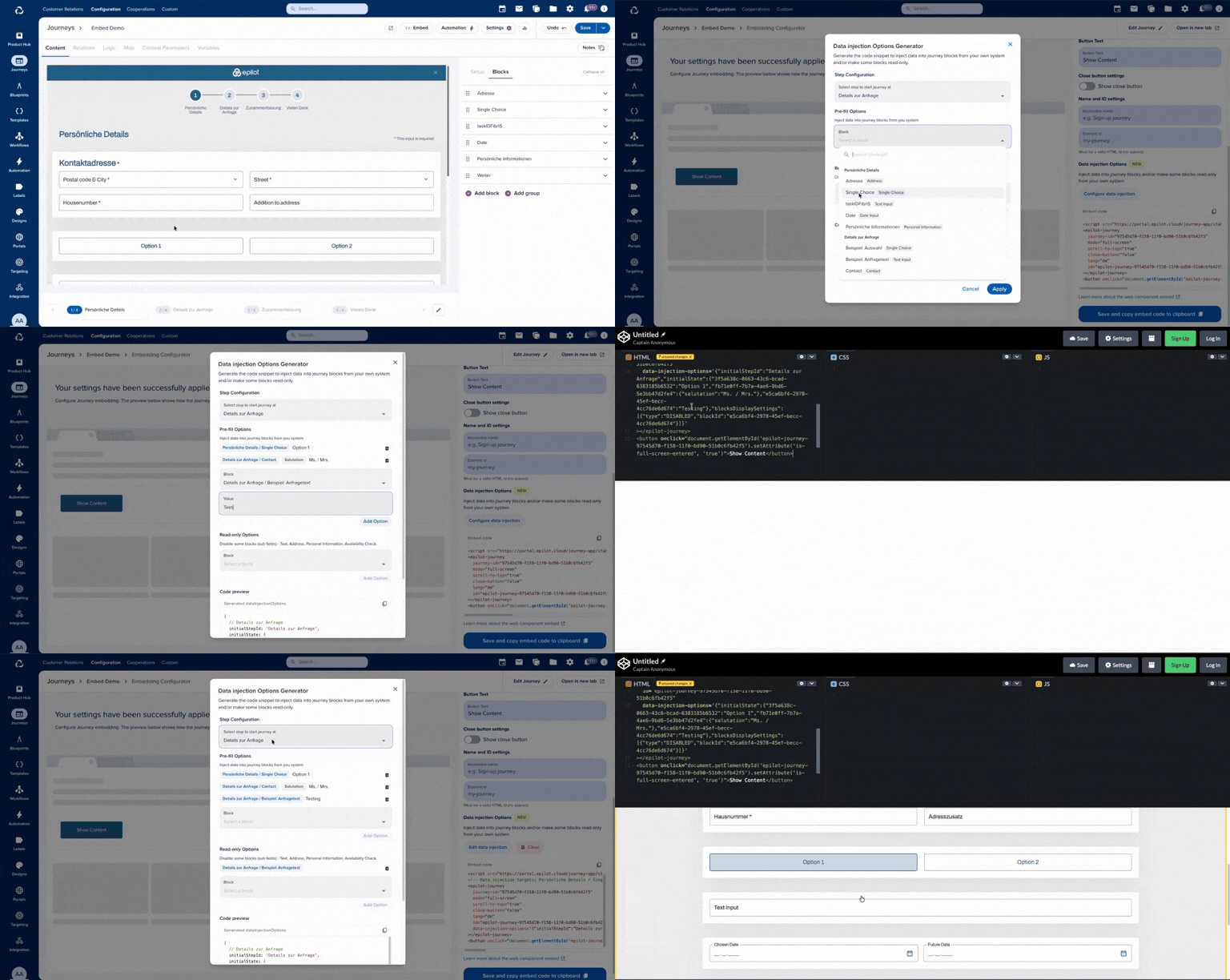
You don't have to hand-write block IDs. The Journey Builder includes a Data Injection (preview) tool that lets you build the configuration visually: pick the blocks and fields to prefill, set their pre-fill values, mark blocks as read-only, choose the starting step, then copy the generated options straight into your .dataInjectionOptions() call.
Legacy step-index form (deprecated)
initialState also accepts an array form (one entry per step indexed by step position, keyed by block name, with empty {} objects for steps you don't prefill), and blocksDisplaySettings also accepts the blockName + stepIndex pair. Both legacy forms are deprecated but still supported for backward compatibility; they break silently when blocks are renamed or steps are reordered, so prefer the block-ID form for new integrations.
$epilot
  .embed('<your-journey-id>')
  .asWebComponent()
  .mode('inline')
  .dataInjectionOptions({
    initialStepIndex: 1,
    initialState: [
      {},
      {
        'Product Selection': {
          selectedProduct: 'solar-panel-basic',
          _isValid: true,
        },
      },
    ],
    blocksDisplaySettings: [
      {
        type: 'DISABLED',
        blockName: 'Product Selection',
        stepIndex: 1,
        blockFields: ['selectedProduct'],
      },
    ],
  })
  .append('#embed-target')
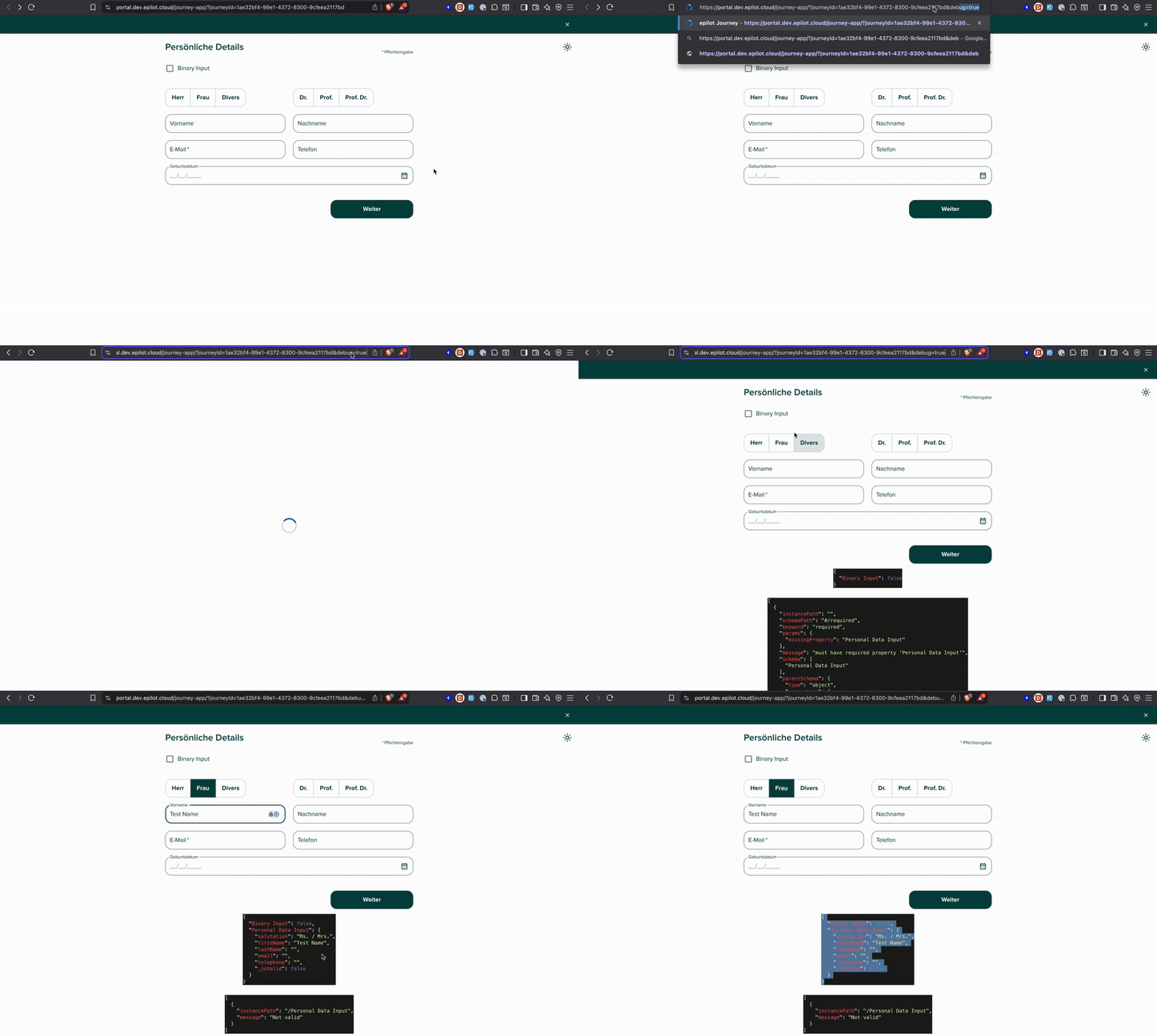
Open your Journey in debug mode from the Journey Builder and inspect the state for each step. See below:
Events
The SDK dispatches the same events as the Web Component, on the window object using postMessage. Listen for them with window.addEventListener:
| Event | Description |
|---|---|
EPILOT/JOURNEY_LOADED | The Journey finished loading. |
EPILOT/EXIT_FULLSCREEN | The Journey exited full-screen mode. |
EPILOT/ENTER_FULLSCREEN | The Journey entered full-screen mode. |
EPILOT/CLOSE_JOURNEY | The user closed the Journey. |
EPILOT/FORM_EVENT | A form-level event occurred (e.g. submission). |
EPILOT/USER_EVENT/PAGE_VIEW | The user navigated to a new step. |
EPILOT/USER_EVENT/PROGRESS | The user made progress in the Journey. |
window.addEventListener('message', function (event) {
  if (event.data?.type === 'EPILOT/JOURNEY_LOADED') {
    console.log('Journey loaded!')
  }

  if (event.data?.type === 'EPILOT/USER_EVENT/PAGE_VIEW') {
    console.log('Step viewed:', event.data?.payload?.path)
  }

  if (event.data?.type === 'EPILOT/CLOSE_JOURNEY') {
    console.log('Journey closed by user')
  }
})
Reacting to close in full-screen
When the user clicks the close button inside a full-screen Journey, the Journey dispatches EPILOT/CLOSE_JOURNEY. The SDK handles this automatically for pure full-screen embeds (mode set to 'full-screen' from the start). For inline-to-fullscreen transitions you need to listen manually and also restore the mode:
// Pure full-screen: SDK handles this automatically, no listener needed.

// Inline-to-fullscreen: restore mode manually on close:
window.addEventListener('message', function (event) {
  if (
    event.data?.type === 'EPILOT/CLOSE_JOURNEY' &&
    event.data?.journeyId === '<your-journey-id>'
  ) {
    embedding.isFullScreenEntered(false).mode('inline')
  }
})
Live Examples
Browse interactive, runnable examples for every SDK scenario:
- SDK Storybook: inline, full-screen, inline-to-fullscreen, launcher, data injection, and more, with both iframe and web component backends.
- Web Component Storybook: the same scenarios using raw
<epilot-journey>attributes (no SDK).
Use the Controls panel in Storybook to switch between backends and change options in real time. These examples work with public Journeys only. Enter your own journey-id in the controls to see it in action.
Release Channels
The SDK auto-loads the web component script from the stable channel by default. To use the canary channel (latest unreleased changes), call .canary() before .asWebComponent():
$epilot
  .embed('<your-journey-id>')
  .canary()
  .asWebComponent()
  .mode('inline')
  .append('#embed-target')
One channel per page
The browser only allows a custom element to be registered once. This means:
- Only one release channel (stable or canary) can be active per page.
- The first
.asWebComponent()call determines the channel for all subsequent embeddings on that page. - Mixing
.canary()and non-canary embeddings on the same page is not supported.
Limitations
Known constraints and edge cases to plan around.
Single web component per page
The browser only allows a custom element to be registered once per page. .asWebComponent() therefore supports exactly one <epilot-journey> instance at a time. To render multiple Journeys side-by-side, use .asIframe() for all of them.
Partial live updates
After a Journey has been rendered, only .mode(value) and .isFullScreenEntered(value) propagate to the live element. Other configuration methods (topBar, scrollToTop, contextData, dataInjectionOptions, etc.) only take effect during the initial embed.
To change any other option after render, call .remove() on the instance and embed again with the new configuration:
embedding.remove()

embedding = $epilot
  .embed('<your-journey-id>')
  .asWebComponent()
  .mode('inline')
  .contextData({ source: 'new-source' })
  .append('#embed-target')
An improved .update() will be released soon.
Context data forwarded to the iframe URL
When you embed with .asIframe(), .contextData() values are forwarded to the iframe src query string only for string and numeric values. Complex types (objects, arrays) are not URL-forwarded. The Journey receives them via postMessage after the iframe signals readiness, so they're available to the Journey runtime but not to any early URL-based logic.
Content-Security-Policy (CSP)
The SDK uses the same script origin as the Web Component embed. See the Web Components CSP guide for the required policy directives.
Migrating from the Legacy __epilot API
If you previously used the __epilot.init() / __epilot.enterFullScreen() API with the bundle.js script, the SDK replaces all of that with a single, consistent interface.
Replace the script:
- <script src="https://embed.journey.epilot.io/bundle.js"></script>
+ <script src="https://embed.journey.epilot.io/sdk/bundle.js"></script>
Replace __epilot.init() with the SDK builder:
- __epilot.init([{ journeyId: '<id>', mode: 'full-screen', topBar: false }])
+ var embedding = $epilot
+   .embed('<id>')
+   .asWebComponent()
+   .mode('full-screen')
+   .topBar(false)
+   .append(document.body)
Replace __epilot.enterFullScreen() / __epilot.exitFullScreen():
- __epilot.enterFullScreen('<id>')
+ embedding.isFullScreenEntered(true)

- __epilot.exitFullScreen('<id>')
+ embedding.isFullScreenEntered(false)
Replace __epilot.on() event listeners:
The SDK no longer uses __epilot.on(). Listen for events directly on window using the same EPILOT/* event type strings. See Events above.
Replace __epilot.update():
The SDK doesn't expose a single update() call. See Limitations for what can and can't be changed after embedding.
Replace __epilot.isInitialized():
Check the instance's element instead of a global registry:
- if (__epilot.isInitialized('<id>')) {
+ if (embedding.el()) {
    // journey is rendered
  }
Dropped options:
Some OptionsInit fields from the legacy script have no SDK equivalent:
minHeight: iframes now auto-size to their content. Remove it from your config.journeyUrl: not supported. The SDK derives the iframe URL frombaseUrl; pass it vianew Epilot({ baseUrl })if you need a non-default Journey app.
The legacy
nameoption is supported as.name(value), which sets the iframe'snameandtitle, or the web component'stitle.
Changelog
2026-06-11
- Data injection now documents stable block IDs as the recommended form:
.dataInjectionOptions()acceptsinitialStatekeyed by block ID,initialStepIdfor the starting step, andblocksDisplaySettingstargeting blocks byblockId. Block IDs are unique journey-wide and resilient to block renames and step reordering. The legacy step-index + block-name forms remain supported but are deprecated.